Programming guides for beginner...
Any comments are welcomed....
I hope it helps!!! Thanks for drop by...

Sunday, March 13, 2011

The Earth or the World going to the end?

    As the Moon is getting nearer to the Earth, rumors say that this “SuperMoon” might be the cause to Japan Earthquake. There are few scientists stated that “SuperMoon” is not the cause of Japan Earthquake. As the Earthquake occurs, it cause tsunami and effecting about 52 countries in the Earth (correct me if I am wrong).

   Previously, an independent Christian group in the U.S. predicted that 21st May 2011 is the End. With the Earthquake in Japan and the “SuperMoon” that coming soon in 19th March 2011, many might believe that doomsday is coming. I believed that there were many that asked a similar question before, “One thing that you want to do when you going to die.” May be those who view this post might want to share your wanted to do thing before doomsday. You are welcome to leave comment. As for me, I would like to learn more things before doomsday.

   As from my post title, I am actually curious about the saying of doomsday. Many said that doomsday == the end of World. As from here, I would like to ask, is the “World” here means the Earth, or the Universe? Does it include the Galaxy? Is doomsday apply to the Earth only or it is actually apply to the Universe?

Hope I will get my answer and hope everyone will pray for the World or may be the Earth.

Sunday, March 6, 2011

Polls for my blog


  As I am busy since I started to work last year November, I have not much time to spend in my blog. As from the title, I would like to inform anyone who visited my blog, I had created a polls provided by Nuffnang. I hope to get some response from you who is reading this now.

I would like to know is my tutorials help you…?

How much does it help you…?

Do you ever download any programs from my website…?

Just three simple questions. I hope to get responds so that I would know whether should I often update more tutorials…

If I got good responds, I would try my best to update more of tutorials in other languages such as C#, or C# with asp.net. Thanks for voting.

Sunday, February 20, 2011

Getting all files in directory include sub directories in vb.net


     As from my previous tutorial on Simple Music Player, I had mentioned that the function that I wrote to getting all songs in the directory is not possible. Now, I had found out a method by using VB.Net Stack. VB.Net Stack is a collection that stores items that being push in. It uses the concept of Last In First Out (LIFO). Although this method list out all the files in directory, as for its’ LIFO system, it will list the files from the last. (Means the last to come will be the first to out.)

Here I includes the coding that need to be changes and also a function that used to get all files.

Private Sub ListView1_DragDrop(ByVal sender As Object, _
ByVal e As System.Windows.Forms.DragEventArgs) _
Handles ListView1.DragDrop
Dim colFiles() As String = e.Data.GetData(DataFormats.FileDrop, True)
For i = 0 To colFiles.Count - 1
Dim list As List(Of String) = GetAllFiles.GetFileList(colFiles(i))
For Each path In list
ListView1.Items.Add(System.IO.Path.GetFileName(path))
ListView2.Items.Add(path)
Next
Next
End Sub

I use loop for data that drop into listview1 is to handle when there is more than one directory being drag into listview1.


And here, I includes the function that used to get all files in a directory which include all sub directories.

Public Class GetAllFiles

Public Shared Function GetFileList(ByVal Dirpath As String) As List(Of String)
Dim result As New List(Of String)
Dim store As New Stack(Of String)
store.Push(Dirpath)

Do While (store.Count > 0)
Dim dir As String = store.Pop
Try
result.AddRange(Directory.GetFiles(dir, "*.mp3*"))

'change here to load music file in other formats. Not all formats are supported.
Dim directoryName As String
For Each directoryName In Directory.GetDirectories(dir)
store.Push(directoryName)
Next
Catch ex As Exception
End Try
Loop
Return result
End Function

End Class

Credited to this site where I found this method. Thanks a lot.

Wednesday, February 9, 2011

Enhanced version of print screen program from previous post.


       When I am doing step-by-step tutorial on Simple Music Player, I used my previous print screen program. When using the program, I found out that there are still improvement that need to be done.

       I had added a new function which is editing the picture after the print screen with Microsoft Paint. This function can be activated by checking on the menu. Besides that, I have added features to auto save function. User will able to enter an integer for the saved pictures to be named.

For those who want to download and test the enhanced version, please visit http://programmingbeginner.zxq.net/download.php.

Tuesday, February 8, 2011

My first step-by-step tutorial on Simple Music Player (VS2008) Part III


     Continue from my previous post of Part I & Part II, this will be the last part of Simple Music Player. When you completed this part, you will be able to use the Music Player to play songs.

     The following coding in the “Check next songs” region is a function that used to check for next songs when current songs finish played. It also stops play when the playlist reached the end. The region for “timer start” is a function when a timer start ticking. The coding can also be approach by double click on timer1 that being added to the interface in Part I.

31

Your code should look like the above picture.

#Region "Check next songs"
    Private Sub Check_Next_Media()
        If int_currplayindex >= ListView1.Items.Count - 1 Then
            Timer1.Stop()
            objAudio.Stop()
            Button1.Text = "Play"
            b_musicEnding = True
            b_musicplaying = False
            Exit Sub
        End If
        b_musicEnding = False
        int_currplayindex += 1
        str_filepath = CStr(ListView2.Items.Item(int_currplayindex).Text)
        objAudio = New Audio(str_filepath, False)
        objAudio.Play()
    End Sub
#End Region

#Region "timer start"
    Private Sub Timer1_Tick(ByVal sender As System.Object, _
                            ByVal e As System.EventArgs) _
                            Handles Timer1.Tick
        ListView1.Items.Item(int_currplayindex).BackColor = Color.Blue
        'change the color here to show current playing music.
        If objAudio.CurrentPosition = objAudio.Duration Then
            b_musicEnding = True
        Else
            b_musicEnding = False
        End If
        If b_musicEnding = True Then
            ListView1.Items.Item(int_currplayindex).BackColor = clr_previous 'previous color
            Check_Next_Media()
        End If
    End Sub
#End Region

     After the the previous Part I & Part II, and also the above coding, you should be able to test your Player now. Press F5 to run the program. Now, you might faced a problem as shown in the picture below:


14


To solve this problem, you will need to change the exception.  Look for Debug | Exceptions. In Exceptions dialog, look for loaderlock in Managed Debugging Assistants and uncheck it at Thrown as shown in the picture below.


15


After that, you should have a working Music Player. If there is still problems, please feel free to leave a comment. I will try my best to help. Open-mouthed smile

Sunday, January 30, 2011

My first step-by-step tutorial on Simple Music Player (VS2008) Part II


     After the First Part of my step-by-step tutorial which is the Interface of the Music Player, now I will start with the coding.

     First of all, to use Microsoft.DirectX.AudioVideoPlayback reference that added in previous post, add this line:

“Imports Microsoft.DirectX.AudioVideoPlayback”

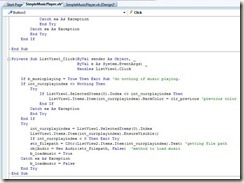
to the coding. To open the coding, press F7. The following picture shows the position of the line.


6


The line is added at the most top outside the class.


     After that, we will need to declare some variables for later use.
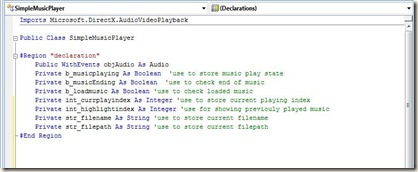

8


Comments are added besides the coding as to explain the use of each variable. "#Region" is use to separate coding into region and for this one, I use declaration as the region name. You can use any name you like as it is just to understand what the region use for.


Code to be copied:


#Region "declaration"
    Public WithEvents objAudio As Audio
    Private b_musicplaying As Boolean  'use to store music play state
    Private b_musicEnding As Boolean  'use to check end of music
    Private b_loadmusic As Boolean 'use to check loaded music
    Private int_currplayindex As Integer 'use to store current playing index
    Private str_filename As String 'use to store current filename
    Private str_filepath As String 'use to store current filepath
    Private clr_previous As Color 'use to store color for previouly played music
#End Region

Public WithEvents objAudio As Audio


use to set objAudio as Audio in the DirectX (obj means object - this will make user to clear about what we assign to objAudio. objAudio had been assigned with Audio with include the events.)


After declaration, I will continue with the method of drag in music files into the listview1.


9


10


11


I didn't explain much in this drag in or drag drop method. For any private sub that handles the object we drag into our interface, you can look at the top where it shows ListView1 in the above picture. If you move your mouse there, a tooltip balloon will show "Class Name" and beside it is "Method Name".


As I mention in the method, I actually modified someone method of looking for directory inside directory... Means look for files inside two layer of directories. I modified it so that when I drag in a folder which contains folders that having a lot of songs inside, it will add the filename into ListView1 and filepath into ListView2.


Code to be copied:


#Region "file_dragenter"


    'this method is being modified from someone else.
    'Sorry for forget his name.
    'This method will only works with two layer directories.
    'Will not works if the files is deep inside more than two layer directories
    'If anyone knows how to loop to find all files in deep, please share it with me. Thanks


    Private Sub ListView1_DragDrop(ByVal sender As Object, _
                                   ByVal e As System.Windows.Forms.DragEventArgs) _
                                   Handles ListView1.DragDrop
        Dim I, iMaxFiles As Integer
        Dim iMaxDir As Integer
        Dim oFileName As String
        Dim str_path As Array
        Dim colFiles() As String = e.Data.GetData(DataFormats.FileDrop, True)
        Dim filelength As Double
        iMaxFiles = colFiles.GetUpperBound(iMaxFiles)
        If iMaxFiles = 0 Then


        End If
        For I = 0 To iMaxFiles
            oFileName = System.IO.Path.GetFileName(colFiles(I))
            filelength = colFiles.Length
            Try
                System.IO.Directory.GetDirectories(colFiles(I))
                If System.IO.Directory.GetDirectories(colFiles(I)).Length > 0 Then
                    iMaxDir = System.IO.Directory.GetDirectories(colFiles(I)).GetUpperBound(iMaxDir)
                    str_path = System.IO.Directory.GetDirectories(colFiles(I))
                    For j = 0 To iMaxDir
                        Dim di As New IO.DirectoryInfo(str_path(j))
                        Dim diar1 As IO.FileInfo() = di.GetFiles("*.mp3") 'change here for other format of files
                        Dim dra As IO.FileInfo
                        For Each dra In diar1
                            ListView1.Items.Add(dra.ToString)
                            ListView2.Items.Add(str_path(j) & "\" & dra.ToString)
                        Next
                    Next
                Else
                    Dim di As New IO.DirectoryInfo(colFiles(I))
                    Dim diar1 As IO.FileInfo() = di.GetFiles("*.mp3") 'change here for other format of files
                    Dim dra As IO.FileInfo


                    For Each dra In diar1
                        ListView1.Items.Add(dra.ToString)
                        ListView2.Items.Add(colFiles(I) & "\" & dra.ToString)
                    Next
                End If
            Catch ex As Exception
                ListView1.Items.Add(oFileName)
                ListView2.Items.Add(colFiles(I))
            End Try
        Next
    End Sub


    Private Sub ListView1_DragEnter(ByVal sender As Object, _
                                    ByVal e As System.Windows.Forms.DragEventArgs) _
                                    Handles ListView1.DragEnter


        e.Effect = DragDropEffects.Copy


    End Sub
#End Region


Reminder:Remember to change your listview1 properties (allowdrop to true). Now you can try to drag and drop a folder into listview1. To do this, you will need to debug the program by pressing F5. Only mp3 files can be drop in if you didn't change the format at here:


Dim diar1 As IO.FileInfo() = di.GetFiles("*.mp3") 'change here for other format of files


Now, we will come to the construction part where the main coding works here.


2224252628


The above picture shows what happens when the form is loaded, button1,2,3,4 being clicked, listveiw1 being clicked and double clicked. The coding to be copied is provided as following:


#Region "construction"
    Private Sub SimpleMusicPlayer_Load(ByVal sender As System.Object, _
                                       ByVal e As System.EventArgs) _
                                       Handles MyBase.Load


        'occurs when form load
        clr_previous = Color.DarkGray 'change previouly played music color here


    End Sub


    Private Sub Button1_Click(ByVal sender As System.Object, _
                              ByVal e As System.EventArgs) _
                              Handles Button1.Click


        'occurs when button1 (Play) clicked
        If b_loadmusic = False Then Exit Sub 'exit if no music loaded
        If b_musicplaying = True Then   'if music playing now
            objAudio.Pause()
            Button1.Text = "Play"   'change text from pause to play
            b_musicplaying = False  'set playing as false as music is paused
        ElseIf b_musicplaying = False Then
            Timer1.Start()  'start timer1 - use to check when music end.
            Try
                objAudio.Stop()
            Catch ex As Exception
            End Try
            objAudio.Play()         'play the music
            Button1.Text = "Pause"  'change text from play to pause
            b_musicplaying = True   'set playing as true as music started
        End If


    End Sub


    Private Sub Button2_Click(ByVal sender As System.Object, _
                              ByVal e As System.EventArgs) _
                              Handles Button2.Click


        'occurs when button2 (Stop) clicked


        If b_loadmusic = False Then Exit Sub 'exit if no music loaded
        objAudio.Stop() 'stop the music
        ListView1.Items.Item(int_currplayindex).BackColor = clr_previous 'previous color
        Timer1.Stop()   'stop timer1 as music consider ended.
        Button1.Text = "Play"   'change text from pause to play
    End Sub


    Private Sub Button3_Click(ByVal sender As System.Object, _
                              ByVal e As System.EventArgs) _
                              Handles Button3.Click


        If b_loadmusic = False Then Exit Sub
        If objAudio.Playing = True Then
            Try
                objAudio.Stop()
                ListView1.Items.Item(int_currplayindex).BackColor = clr_previous 'previous color
                int_currplayindex = int_currplayindex - 1
                If int_currplayindex < 0 Then
                    int_currplayindex = ListView1.Items.Count - 1
                End If
                ListView1.Items.Item(int_currplayindex).Selected = True
                ListView1.Items.Item(int_currplayindex).EnsureVisible()
                Try
                    If int_currplayindex < 0 Then Exit Try
                    str_filepath = CStr(ListView2.Items.Item(int_currplayindex).Text) 'getting file path
                    objAudio = New Audio(str_filepath, False)  'method to load music
                    b_loadmusic = True
                    objAudio.Play()
                Catch ex As Exception
                End Try
            Catch ex As Exception
            End Try
        End If
    End Sub


    Private Sub Button4_Click(ByVal sender As System.Object, _
                              ByVal e As System.EventArgs) _
                              Handles Button4.Click


        If b_loadmusic = False Then Exit Sub
        If objAudio.Playing = True Then
            Try
                objAudio.Stop()
                ListView1.Items.Item(int_currplayindex).BackColor = clr_previous 'previous color
                int_currplayindex = int_currplayindex + 1
                If int_currplayindex > ListView1.Items.Count - 1 Then
                    int_currplayindex = 0
                End If
                ListView1.Items.Item(int_currplayindex).Selected = True
                ListView1.Items.Item(int_currplayindex).EnsureVisible()
                Try
                    If int_currplayindex < 0 Then Exit Try
                    If int_currplayindex > ListView1.Items.Count - 1 Then
                        int_currplayindex = 0
                    End If
                    str_filepath = CStr(ListView2.Items.Item(int_currplayindex).Text) 'getting file path
                    objAudio = New Audio(str_filepath, False)  'method to load music
                    b_loadmusic = True
                    objAudio.Play()
                Catch ex As Exception
                End Try
            Catch ex As Exception
            End Try
        End If


    End Sub


    Private Sub ListView1_Click(ByVal sender As Object, _
                                ByVal e As System.EventArgs) _
                                Handles ListView1.Click


        If b_musicplaying = True Then Exit Sub 'do nothing if music playing.
        If int_currplayindex <> Nothing Then
            Try
                If ListView1.SelectedItems(0).Index <> int_currplayindex Then
                    ListView1.Items.Item(int_currplayindex).BackColor = clr_previous 'previous color
                End If
            Catch ex As Exception
            End Try
        End If
        Try
            int_currplayindex = ListView1.SelectedItems(0).Index
            ListView1.Items.Item(int_currplayindex).EnsureVisible()
            If int_currplayindex < 0 Then Exit Try
            str_filepath = CStr(ListView2.Items.Item(int_currplayindex).Text) 'getting file path
            objAudio = New Audio(str_filepath, False)  'method to load music
            b_loadmusic = True
        Catch ex As Exception
            b_loadmusic = False
        End Try
    End Sub


    Private Sub ListView1_DoubleClick(ByVal sender As Object, _
                                      ByVal e As System.EventArgs) _
                                      Handles ListView1.DoubleClick


        ListView1.Items.Item(int_currplayindex).BackColor = clr_previous 'previous color
        int_currplayindex = ListView1.SelectedItems(0).Index
        ListView1.Items.Item(int_currplayindex).EnsureVisible()
        str_filepath = CStr(ListView2.Items.Item(int_currplayindex).Text)
        If b_loadmusic = True Then
            If b_musicplaying = True Then
                Timer1.Stop()
                objAudio.Stop()
                b_musicEnding = True
                Button1.Text = "Play"
            End If
        End If
        Try
            objAudio = New Audio(str_filepath, False)
            b_loadmusic = True
            b_musicplaying = True
            Timer1.Start()
            objAudio.Play()
            Button1.Text = "Pause"
        Catch ex As Exception
            b_loadmusic = False
            b_musicplaying = False
        End Try
    End Sub
#End Region


There will be part III for the final part of coding.                                                                         Please feel free to ask any questions if you don't understand this method or any coding here.    


(PS: Sorry for my noob code block. I don't really know html much although my website is fully customized in html and CSS only.)


Saturday, January 29, 2011

My first step-by-step tutorial on Simple Music Player (VS2008) Part I

     After I posted more than 10 tutorials, I found out that it might not be useful to those beginner. So this is my first step-by-step tutorial. I hope that it will be useful to everyone. This tutorial might not be completed in only one post but at least two posts. For now, I haven’t decide about the exact number of posts I going to use.

    Tutorial start here:

    Requirements : 1) Visual Studio 2008 (VS2008) or Visual Basic 2008 Express Edition (VB2008).

                               2) Newest Direct X recommended.  Download from here.

    First, start either VS2008 or VB2008. A start page will appear. Click on create project from start page or go to File | New Project. For VS2008, choose Visual Basic | Windows | Windows Form Application while for VB2008, just simply choose Windows Form Application. Choose a name for your application and click OK. In this tutorial, I will be using Simple Music Player.

(Remarks: I am using VS2008)

1

Picture for New Project Dialog


2

After click on OK button, this should be the screen that appear

    After that, drag a button from toolbox to the form. If you can’t find toolbox, go to View | Toolbox. Toolbox will appear on the left. Follow the following picture and place four buttons to the same position. To change the button text to the same in the picture, go to the properties. Properties should be on the right but if it is not, go to View | Properties. To change button text, click on the button and look for text in the properties (The red square area on the right). Change the four buttons text to “Play”, “Stop”, “Previous”, “Next”. (ps: sorry for the wrong arrangement in the picture.)

3

Properties:

Button1 - text:Play    - anchor:bottom,left
Button2 - text:Stop    - anchor:bottom,left
Button3 - text:Next    - anchor:bottom,left
Button4 - text:Previous    - anchor:bottom,left

Anchor is use to lock the position and size of any object that being drag into the form.

(Tip: In order to get the same size of button, drag only one button to the form. Copy the button and paste it to the form for the rest buttons.)

     Add two listviews to the form from the toolbox. Listview1 is use to show the music name while listview2 is use to store the music file path. Listview2 will be invisible by setting the properties of visible to false. Resize listview1 to any size that you like.

7

Properties:

listview1 - allowdrop:true         - anchor:top,bottom,left,right      - view:list      - multiselect:false
listview2 - visible:false

     Add a timer into the form. Timer will be appear under the form. Change the Interval to 1. Interval is the time for timer event to elapsed. This is calculated by milliseconds. In this project, timer is use to check for ending of song and also starting the next song.

13


      Here, you will need to have DirectX SDK in order to proceed. There are few methods to play Music with VB.net. In this tutorial, I will guide using DirectX method. In order to use DirectX, you will need to add reference to the project. Go to Project | Add Reference and the following dialog will appear. Look for Microsoft.DirectX.AudioVideoPlayback and click ok.

5


This will be the first part of the tutorial. This part includes only interfaces but not coding. The next part will be coding. I not sure how long do I need to complete it but I will try my best to complete it asap. Please comment for any problems.